Video Cutter Pro
- 0.0
- Rating
- 10.00K
- Installs
- $4.99
- Price

 Analysis by App-foxy
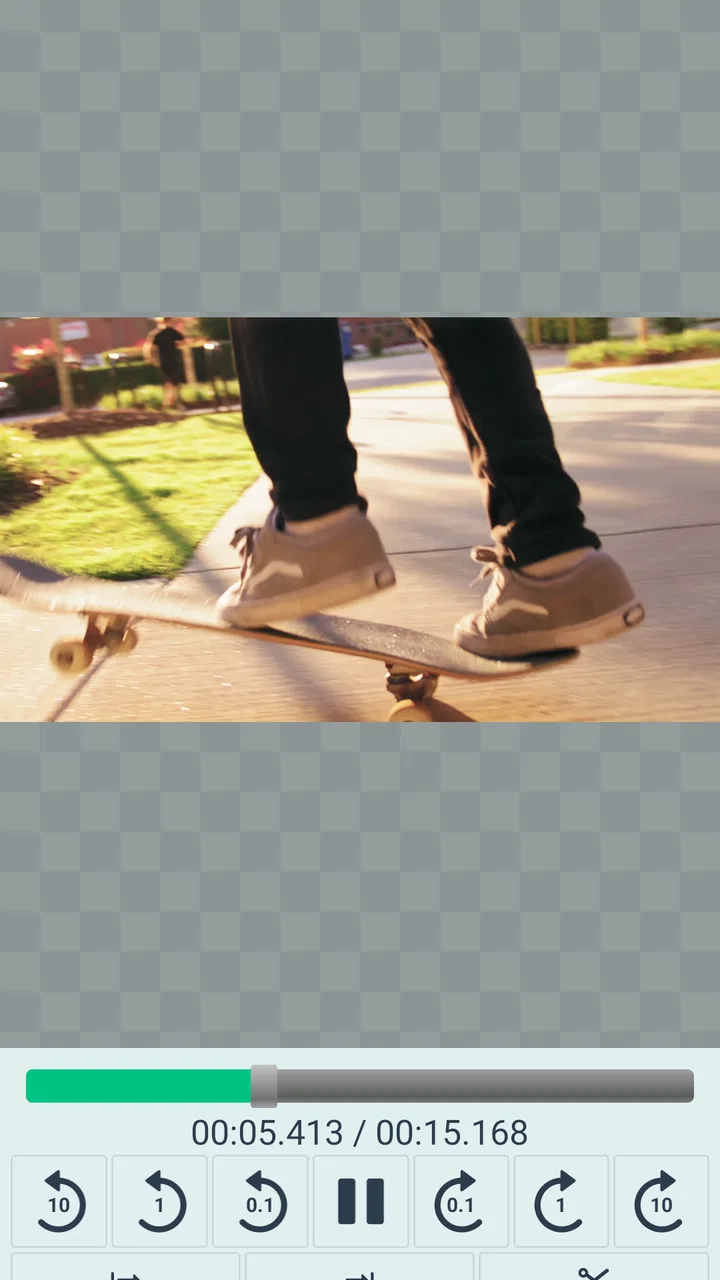
Cutting a video down to the useful moment should be a small job, but on a phone it often turns into a hunt through menus, editing timelines, and export settings. Video Cutter Pro takes a narrower approach: I open a video, choose where it should begin and end, then save or share the shorter clip. After trying it as a focused video editing app, I found that its value comes less from offering a complete studio and more from keeping one common task direct.
That focus makes it easy to understand, especially if you only need to remove the beginning or ending of a recording. It is aimed at everyday editing rather than ambitious production work, and that distinction matters. I would not choose it to build a montage, add titles, mix sound, or create a polished social-media sequence. I would choose it when the original file is basically right and only its boundaries need changing.
How the focused trimming workflow feels on a phone
The basic workflow is refreshingly clear. I select a video file, identify the start point, identify the end point, and create a shorter version. That narrow sequence is useful when I am working from a phone screen and do not want a crowded interface competing for attention. The app belongs to the Video Players & Editors category, but it behaves more like a practical utility than a broad editing suite.
You May Also Like

 Blood Strike: 2.5 Anniversary
Blood Strike’s Loadouts Turn Every Drop Into a Tactical Gamble
A close look at Blood Strike’s custom loadouts: how fast access to signature weapons reshapes its battle royale rhythm, rewards preparation, and narrows the gap between fights.

 Pandora - Music & Podcasts
Pandora’s Music Is Easy to Start, but Harder to Recover
Pandora’s strength is its low-effort path from a seed to a station. Its weak spot is how much confidence it asks you to place in connection, setup, and quiet recovery.

 8 Ball Pool
 Is Built on Rivalries, Rematches, and Routine
A close look at the rivalries, rematches, shared routines, and unanswered safety questions that turn a quick pool match into a persistent mobile community.

 Samsung Music
’s Quiet Strength Is Playing What You Already Own
Its reach comes less from spectacle than from dependable access to a personal library. That simplicity is both the app’s strongest retention engine and its ceiling.

 AccuWeather: Weather Radar
AccuWeather Review: A Quick, Clear Forecast for Everyday Decisions
For everyday plans, the best forecast is the one you can understand quickly. AccuWeather makes rain timing, radar, and local conditions easy to act on, with a few trade-offs.

 Hill Climb Racing
Why Hill Climb Racing Still Turns Crashes Into One More Run
A tiny car, a bumpy hill and one more upgrade: Hill Climb Racing keeps resurfacing because its simple chaos makes every near-miss feel personal.
More From Our News Desk
View All News


A realistic example is a family recording where the first minute contains someone positioning the phone and the final seconds show the camera being put away. With this app, the sensible workflow is to open the recording, move the beginning past the setup, move the ending before the awkward finish, and then save the result. The important advantage is not cinematic control; it is being able to make that correction without learning a large editor.
I also found the start and end points more important than they may initially seem. A clip can technically contain the right event while still feeling poor to watch if it begins too early or ends too late. I recommend previewing both boundaries carefully before saving, particularly when speech begins immediately or when a gesture is completed right at the end. A trim that is off by a small amount can remove the first word or make the final action feel abruptly cut.
The strongest reason to use this app is its limited scope. That sounds like a weakness, but it can be a benefit for someone who repeatedly performs the same simple edit. A larger editor usually gives more control, yet that extra control also creates more places to tap, more panels to understand, and more opportunities to export the wrong version. Video Cutter Pro keeps the decision centered on two points in the timeline.
Where connectivity enters the experience
The editing task itself begins with a video already available on the device, so the most natural use is local preparation: select the recording, set the boundaries, and create a shareable clip. I would not treat the app as a cloud workspace or as a service for browsing remote libraries. Its stated job is handling a video file, which makes the location and accessibility of that file an important part of the experience.
Connectivity becomes more visible at the handoff stage. Once the clip is ready, sharing may take you into another app or service, and that destination can depend on a connection. If I am sending the result through a messaging platform, posting it online, or moving it to a cloud destination, the success of that final step is shaped by the network and by the receiving app. The cutter can prepare the media, but it should not be confused with the whole delivery process.
That separation is useful when something goes wrong. If sharing fails, I would first check whether the trimmed file was successfully saved, then try the share action again or use another route from the device. Keeping the saved clip as a separate step is safer than assuming a successful handoff means the edit itself was preserved. This is one of the practical habits I recommend: finish the trim, confirm the result, and only then send it.
For a person with an unreliable connection, this distinction can reduce frustration. You may still be able to prepare the clip before dealing with a later upload or message, but I would not promise a completely connection-free workflow because the available facts describe trimming and sharing, not every network condition or offline behavior. The app is best understood as the editing part of a larger mobile process.
Useful mobile situations beyond the obvious
One strong use case is cleaning up a video before handing a phone to someone else. Suppose I record a short demonstration for a colleague but capture several seconds of preparation first. Trimming the file before sharing makes the recipient’s experience better and avoids asking them to scrub through irrelevant material. The same logic applies to a clip sent to a family group: a tighter beginning and ending make the message feel intentional without requiring effects or captions.
Another practical scenario involves limited attention rather than limited storage. When I am standing somewhere busy, I do not want to assemble a project with multiple tracks. I want to remove the dead space and get back to the conversation. A focused cutter suits that moment better than a full editor, provided the source video is already on the phone and the desired result is just one continuous section.
There is also a useful distinction between trimming and compressing. Cutting away unwanted time changes the duration, but it should not be treated as a guaranteed solution for every large-file problem. If a recording is still too heavy after the unwanted portions are removed, a separate tool designed for compression or conversion may be more appropriate. I would use this app to improve the content boundaries, not assume that it replaces every media utility.
The same limitation applies to multiple selections. If I want to keep three separate moments from one long recording and discard everything between them, a simple start-and-end workflow may not be the right fit. I would need either several separate clips or a more advanced editor that supports assembling multiple segments. That trade-off is easy to overlook when the first trim feels so straightforward.
Precision, previews, and avoiding a bad save
The most valuable habit is to treat the first pass as a selection exercise rather than rushing to save. I look at the point where the meaningful action starts, then check the ending for a natural stopping point. For spoken content, I leave enough room around the first and last words. For a physical action, I make sure the motion is complete. This is more useful than simply dragging until the duration “looks right.”
I also recommend keeping the original recording until the trimmed version has been checked. A shortened clip is a new deliverable, and mistakes are easier to correct when the source remains available. This matters especially for one-time recordings, such as a child’s performance or an important demonstration. The app’s simplicity makes trimming quick, but quick does not mean irreversible mistakes are impossible.
File organization is another small but important consideration. Before sharing, I would identify which version is the original and which is the edited clip. A clear naming habit or a quick visual check can prevent sending the untrimmed recording by accident. This is not a flashy feature, but it is the kind of workflow detail that determines whether a utility is genuinely helpful in daily use.
When the result does not appear where I expect, I would avoid immediately repeating the edit several times. First I would check the device’s recent media or file location, then confirm whether the intended clip was saved. Repeating the operation without checking can leave several nearly identical files and make the original problem harder to identify. A calm save-and-check routine is the best recovery strategy for a focused tool like this.
What happens when sharing is the difficult part
Sharing is presented as part of the app’s purpose, but the final experience can vary depending on the destination. A message, social platform, cloud drive, or nearby transfer tool may each handle the resulting video differently. If a destination is unavailable, I would treat that as a separate handoff issue rather than assuming the trim failed. The sensible recovery path is to verify the saved clip, then choose another sharing route when possible.
This also affects when I would edit. If I know I am about to send a clip from an area with weak service, I would prepare and inspect the video before starting the conversation or attempting an upload. That way, the network delay affects delivery rather than the creative decision. The app is most comfortable when the trim and the share are treated as two linked but separate stages.
I would be more cautious with very important material. For a clip that must reach someone immediately, I would verify both the saved output and the recipient-facing result if the destination provides a preview. A successful transfer does not always mean the receiver will see the exact version I intended, so checking the selected file before sending is worthwhile.
Data-conscious habits for everyday editing
Trimming can support a more data-conscious workflow because it lets me remove unnecessary footage before I send a file elsewhere. If the unwanted material is at the beginning or end, there is little reason to upload the entire recording first and edit it later. Preparing the shorter version on the phone can make the eventual share more purposeful, even though the app should not be described as a dedicated compression tool.
For mobile data, I would avoid repeatedly sharing test versions. Preview the boundaries, save one considered result, and send that version once. If I am uncertain about the ending, it is better to check it locally before using a network-dependent destination. This simple approach reduces duplicate transfers and keeps the conversation or upload from becoming a trail of corrections.
Storage deserves similar attention. Keeping every failed attempt can create clutter, especially when a long recording produces multiple edits. I would retain the original and the final chosen clip, then remove obvious duplicates after checking that the important material is safe. The app does not need to become part of a complicated media-management system, but disciplined file handling makes its focused workflow much more effective.
These habits also clarify who should skip it. If you regularly need filters, transitions, music, subtitles, speed changes, layered visuals, or several clips combined into one project, a full editor is the better investment. If your main concern is reducing file size, use a compression-focused option as well. Video Cutter Pro is not a substitute for those tools; its appeal is that it does not make a basic trim feel like a production job.
How it compares with larger editors and built-in tools
Compared with a full mobile video editor, this app is easier to approach when the job is only to choose new boundaries. A larger editor wins when the project needs structure, multiple clips, sound work, or visual changes. It also gives more room for creative decisions. In exchange, that flexibility can make a one-minute trim feel unnecessarily elaborate.
Compared with a built-in gallery editor, the choice is less obvious. A gallery tool may already cover quick trimming, so someone who only edits occasional personal recordings might not need another app. Video Cutter Pro becomes more interesting when I want a dedicated, repeatable cutter rather than a feature hidden inside a broader photo and video library. The deciding question is not whether trimming is possible elsewhere; it is whether a focused workflow is worth keeping available.
Compared with browser-based editors, a dedicated app avoids making the task depend on uploading the source to a website before editing. That can be convenient for a file already on the phone, although I would still make decisions based on the actual destination and sharing workflow. Browser tools may be preferable when I am moving between devices or need more advanced controls, while this app fits the person who wants a direct phone-centered operation.
The price is another part of that comparison. Video Cutter Pro costs $4.99, so I would not recommend buying it automatically when a built-in editor already handles the occasional trim comfortably. The purchase makes more sense for someone who values a dedicated utility and expects to use this exact task often enough to justify paying for a narrower experience.
Compatibility, audience, and long-term expectations
The app is suitable for Everyone, which matches the uncomplicated nature of cutting personal videos. It was released on July 12, 2023, and the current version is 1.1.6. It requires Android 8.0 or newer, so owners of older Android devices should check compatibility before planning around it. Those details matter because a simple tool is only useful if it fits the phone that will handle the recordings.
HARDCODED JOY S.R.L. is the developer, and the app has passed the ten-thousand-install mark. I read that reach as evidence that it is not an entirely obscure experiment, but I would still judge it by fit rather than popularity. A focused cutter can be valuable to a small audience with a recurring need, while being unnecessary for someone whose built-in gallery already covers the same job.
One question many people have is whether this is suitable for professional editing. My answer is no, not as a primary editor. It can prepare a clean segment for a presentation, message, or quick handoff, but professional work usually needs more control over sound, sequencing, titles, and output decisions. Its strength is speed and simplicity, not depth.
Another question is whether it is useful for social media. It can be useful before posting when the only problem is an unwanted opening or ending. It is less suitable when the post needs a particular layout, captions, music, transitions, or several scenes. In that situation, I would trim here only if that is convenient, then move to a platform-specific or full editing tool for the rest.
My connectivity verdict
I see Video Cutter Pro as a practical, narrow Android app for turning one existing video into a cleaner continuous clip. Its best moments happen before the network enters the picture: selecting the source, choosing careful boundaries, and preparing a version that is easier to send. The connection matters afterward, especially when sharing, but separating editing from delivery makes failures easier to diagnose.
I would recommend it to a friend who often says, “I only need to cut off the beginning and the end.” It is a reasonable choice for quick personal clips, demonstrations, family recordings, and simple messages where a full editor would be excessive. I would skip it if I needed creative editing, multi-clip assembly, compression controls, or a tool that clearly replaces a complete mobile production suite.
My final advice is to use it deliberately: choose the source, leave a little breathing room around speech and movement, save the result, inspect it, and only then share it over the connection available to you. At $4.99, it earns consideration when that focused workflow matches your routine. For me, its real appeal is not that it tries to do everything, but that it keeps a common edit from becoming a larger project than it needs to be.
FAQs for Video Cutter Pro
01What is Video Cutter Pro used for?
Video Cutter Pro is designed for trimming and editing video clips directly on a mobile device. After importing a video, you can select the exact start and end points, remove unwanted sections, and save a shorter version for sharing. It is particularly useful for preparing videos for social networks, messaging apps, status updates, or quick personal edits without needing a desktop editor.
02Does Video Cutter Pro support common video formats and high-resolution files?
The app generally works with widely used mobile video formats, such as MP4, although compatibility can depend on the device and the specific file characteristics. Before downloading or editing important footage, check the app-store listing for current format and resolution support. Large or high-resolution videos may take longer to load, process, and export, especially on older phones.
03Can I use Video Cutter Pro without an internet connection?
Video Cutter Pro is primarily intended for local video editing, so basic cutting may work without an active internet connection once the app is installed. This is convenient when traveling or working with private recordings. However, advertisements, optional online features, updates, or external sharing may require connectivity. Availability of offline functions can also vary between Android and iOS versions.
04Will Video Cutter Pro reduce the quality of my videos or add a watermark?
The exported result depends on the app’s available encoding and quality settings, as well as the original video. Some exports may preserve quality reasonably well, while others can be compressed to reduce file size. Users should also check whether the free version adds a watermark, limits resolution, or restricts export options. These conditions may differ by platform and subscription status.
05Is Video Cutter Pro free, and are there any limitations?
Video Cutter Pro may be available as a free download, but free access can include advertisements, purchase prompts, watermarks, limited export settings, or restrictions on certain tools. The exact model can change with updates, so review the current store description before installing. If you only need simple trimming, the free features may be sufficient, while frequent users may prefer paid options.
Pros
- Cuts and trims clips quickly without requiring advanced editing skills.
- Supports common video formats for convenient everyday editing.
- Simple interface makes basic edits easy to find and use.
- Useful for preparing shorter videos for social media sharing.
- Processes short clips efficiently on most modern devices.
Cons
- Some advanced editing tools may be unavailable compared with full editors.
- Export quality and format options can vary depending on the source video.
- Long or high-resolution videos may take noticeably longer to process.
- The free version may include ads or impose restrictions on some features.
- Edited videos can require considerable storage space during export.

Video Cutter Pro
Gallery